How to Install Visual Studio Code on Windows.
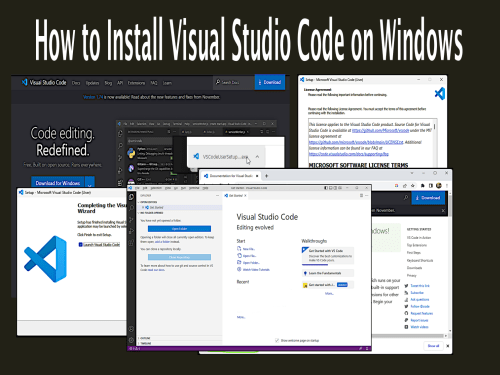
Visual Studio Code is a very popular code IDE provided by Microsoft. Excellent for developing in different languages. A user-friendly code editor and IDE works on Windows, macOS, and Linux. It has the support for all the languages like C, C++, Java, Python, JavaScript, React, Node JS, etc.
VSCode has many features, one of my favorites is multiple workspaces. For instance, you can be working in PlatformIO on esp32 then change workspace and be working JavaScript on electron. We will cover more on this another time.
For now, we should get on with Installing Visual Studio Code on Windows.
Download.
You can download Visual Studio Code from here
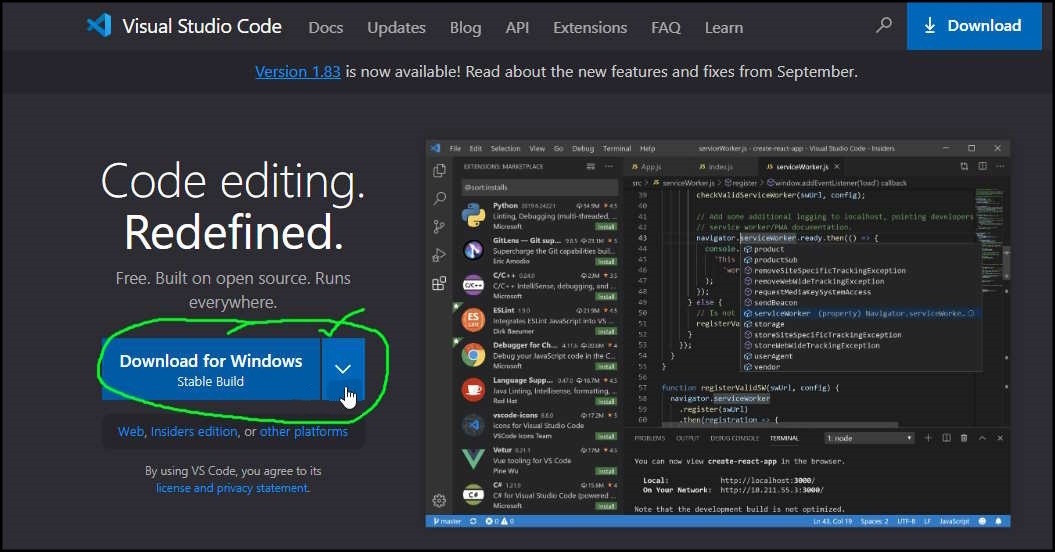
We’re talking about installing VSCode on Windows here, so Click the Download for Windows button.
There is a Linux and Mac download option, if you wish simply use the drop down arrow. For Linux or Mac Installations you will have to do your own internet research.
For the rest of this document I will assume we are installing on Windows 10/11 64bit.
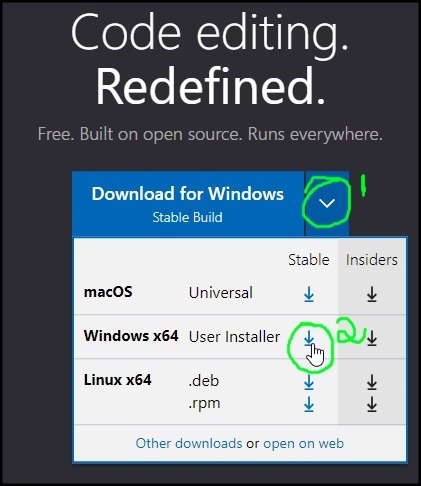
Download VSCodeUserSetup-x64
1 Click on the V dropdown
2 Select the Windows x64 User Installer Stable Version and Click to download.
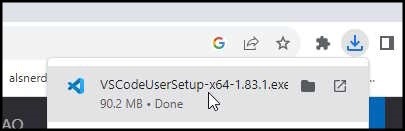
When the download has completed, Select the downloaded files icon on the top left of your browser. when the menu drops down select the VSCodeUserSetup-x64-xxx.exe file you just downloaded, to start the install.
Please Note VSCodeUserSetup-x64-xxx.exe will be the current version of the installer file.
Begin Install.
Accept the License Agreement.
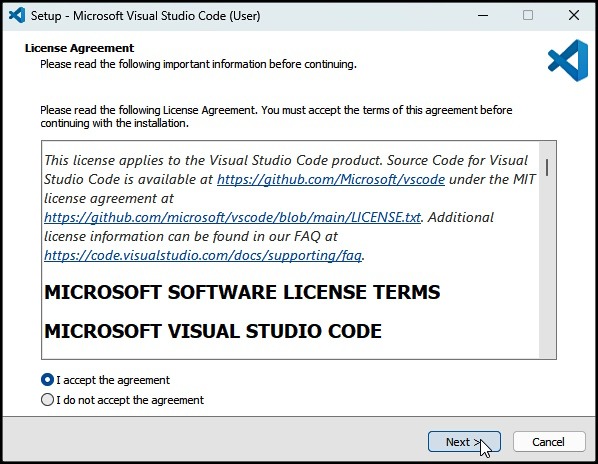
Click the I Accept the Agreement option.
Then Click Next.
Select Destination Location.
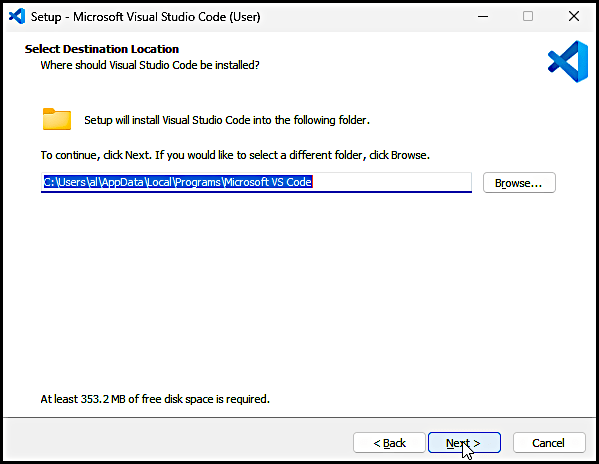
Simply accept defaults, click Next, or change the install folder if needed.
Select Start Menu Folder.
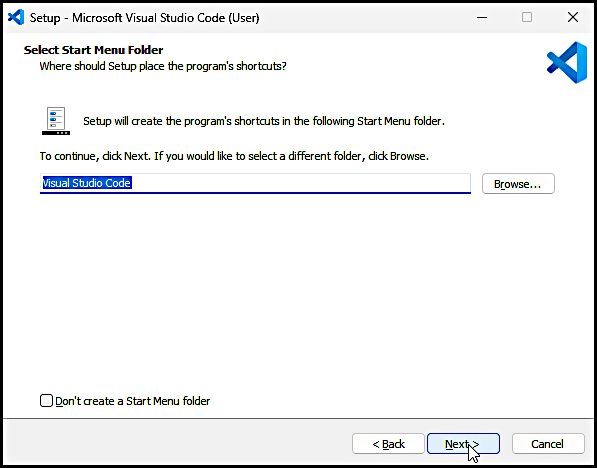
I just clicked next, but again, you can change if required.
Select Additional Tasks.
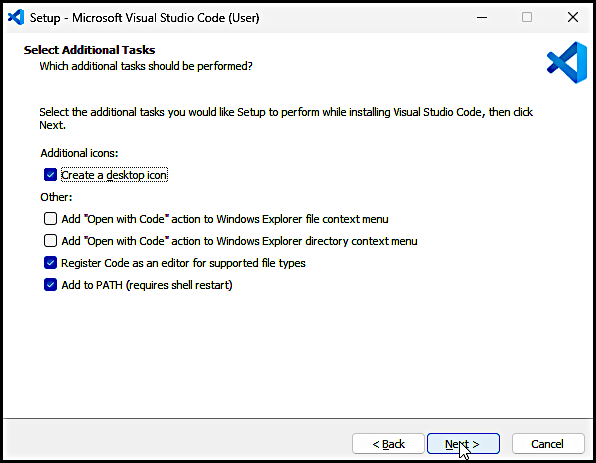
Tick the Create a Desktop Icon Checkbox.
Then Click Next.
Ready to Install.
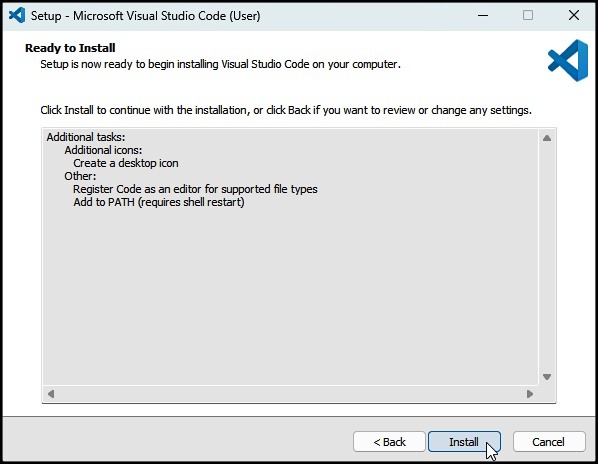
Click Install.
Install Finished.
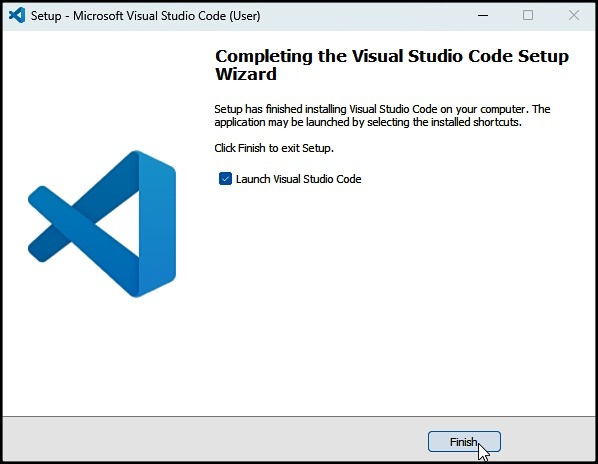
Click Finish, to Launch Visual Studio Code.
VSCode start up screen.
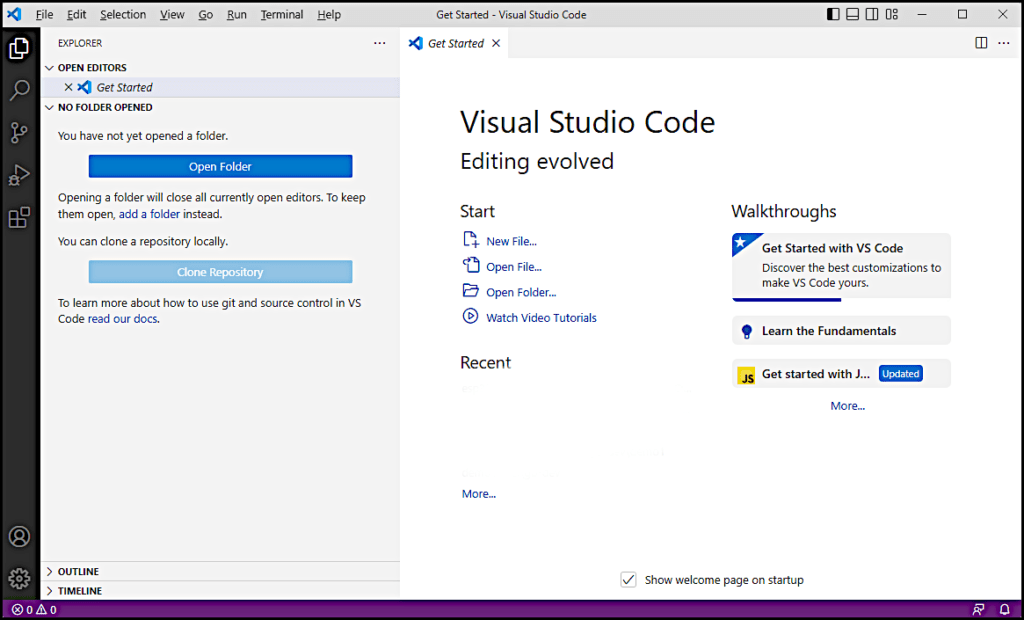
How, easy was that?
Now this is just the beginning… from here you can configure VSCode to work the way you want.
VSCode Extensions.
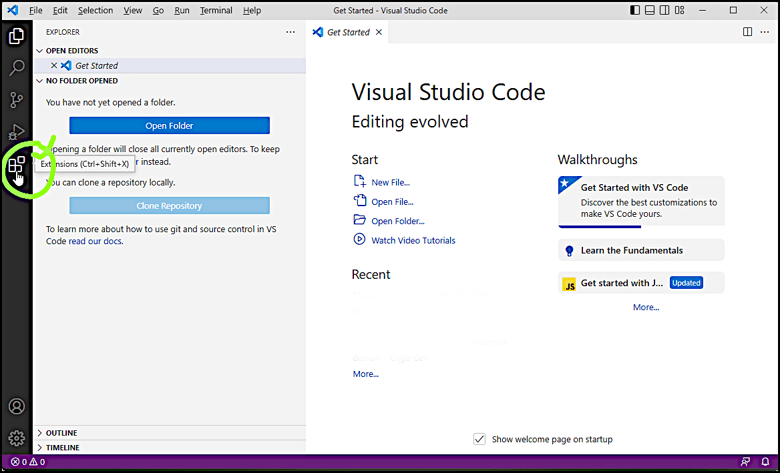
The icon that looks like a broken Rubik’s cube is for adding extensions. Click it, and follow the prompts to add your required extensions.
Add VSCode Extensions.
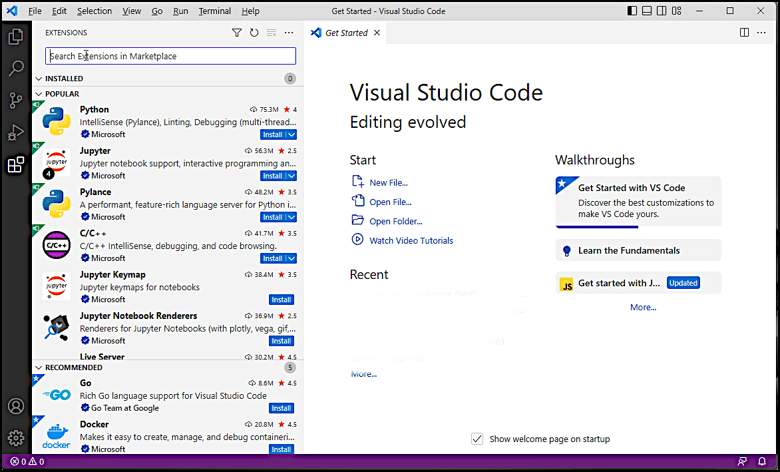
Ok, this is where things happen. Here you can add extensions. Like PlatformIO, Python, GO, and the list goes on.
Wrap Up.
Visual Studio Code is a building block, one of those good to know about things as we move along with other projects.
We set out to Install Visual Studio Code on Windows, it all went well my end, how bout you?
Cheers Al
By Al McDivitt alsnerdnotes.com
© 2023 Al’s Nerd Notes